Instagram shows “We suspect automated behavior on your account” when something using your account looks scripted: too many actions too fast, a login it does not recognise, or an app that has your password. It is a warning, not a ban, and it usually clears within a few days once you remove whatever caused it and use the account normally.
The fix is mostly detective work. Something is acting on your account, and the warning will keep coming back until you find it and cut it off. If we had to bet without seeing your account, we would bet on an app that has your password. That is where to look first.
What the warning actually means
Instagram does not publish the rules that trigger this message. That is deliberate: a published threshold is a threshold spammers can sit just under. What it does publish is the principle. Its Terms of Use say you cannot access or collect information on the platform in an automated way without Instagram’s express permission, and that nobody may request or collect other people’s usernames and passwords.
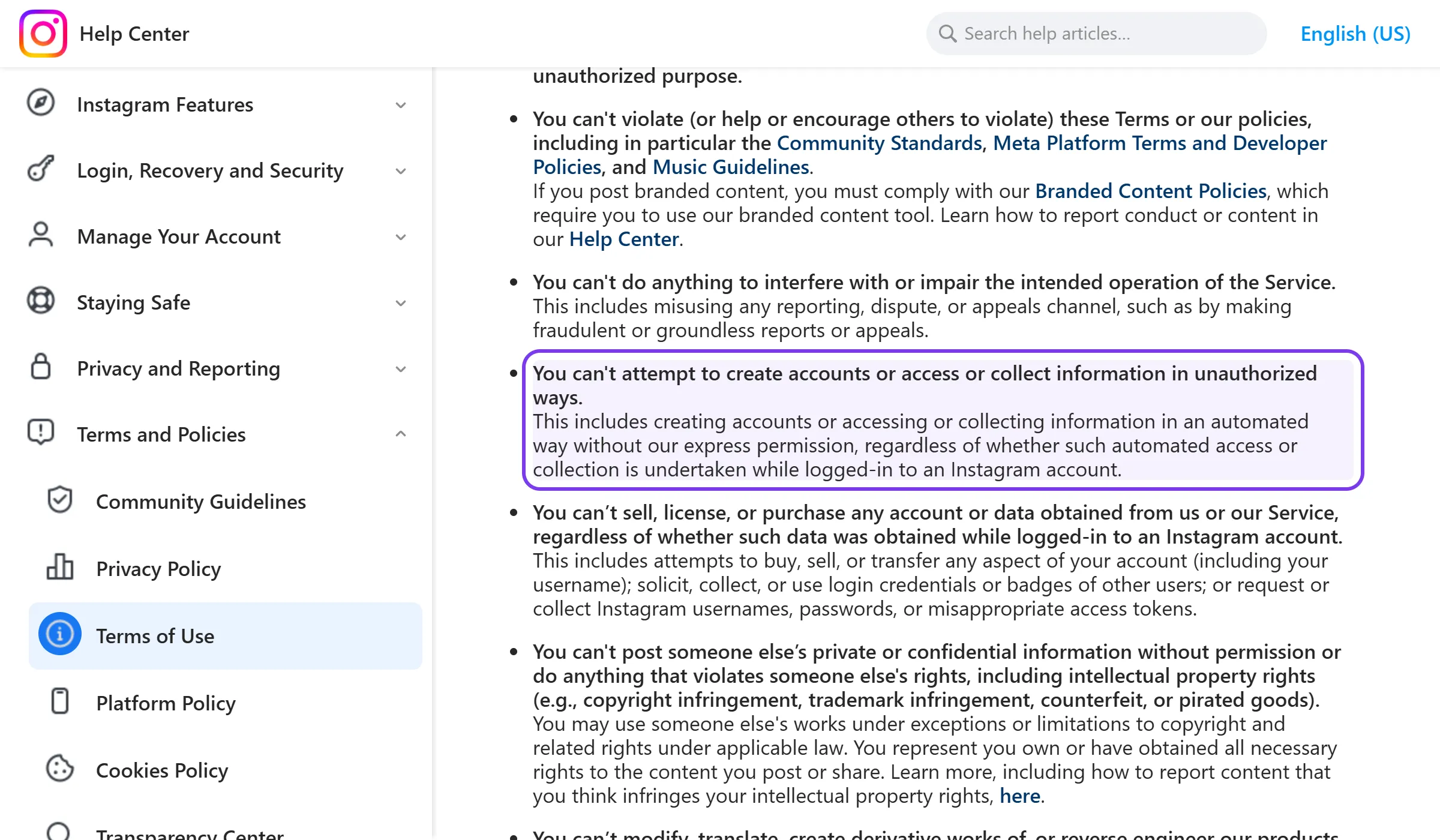
The warning is the enforcement end of that clause. Instagram’s systems watch how your account behaves and compare it against how people behave. When the pattern looks more like a script than a person, you get the notice.
Nothing you posted caused it. The trigger is behaviour, either yours or something acting as you. It often arrives with limits attached, so following, liking, commenting or messaging may stop working for a while, although posting usually still works.
Treat it as a first step rather than the whole story. Instagram’s terms let it restrict or disable accounts that keep breaking them. One warning that you deal with is routine. A warning you ignore while the cause keeps running is how accounts end up disabled.
People search this under a dozen phrasings, from “Instagram thinks I’m a bot” to “we’ve detected automated behavior”. They are the same system with slightly different wording.
What triggers it
Most cases come down to one of five causes. They are listed roughly in the order they turn up.
A third-party app or service with your password
This is the big one. Follower growth services, “auto-liker” apps, mass-DM tools and some older schedulers ask for your Instagram username and password, then log in as you from their servers and click buttons in your account. To Instagram, that is a login from an unknown data centre followed by activity no human performs at that speed.
Instagram’s own security page does not soften it: give an app your login details and it can get complete access to your account. The Terms of Use go further and ban collecting other people’s usernames and passwords at all. So a service that asks for yours has broken Instagram’s rules before it has done a single thing for you.
If you have ever typed your Instagram password into any website other than Instagram’s own, start here.
Doing the same thing too fast
Following and unfollowing in bursts, liking hundreds of posts in a sitting, pasting the same comment under dozens of posts, or sending the same DM to people who never messaged you. Each is a normal action. Done at volume and in a repeating pattern, it looks like a bot, even when it is you with a lot of coffee.
Instagram publishes exactly one hard number here: no account can follow more than 7,500 people. Everything else is a moving limit that depends on how old the account is and how it has behaved before. New accounts get much less room than established ones.
Logins from places your account does not usually go
VPNs, proxy browsers, a social media manager logging in from another country, a shared login used by three people on three phones. Any one of these is fine. Together, or suddenly, they look like an account that has been taken over. The warning is sometimes Instagram protecting you from what it thinks is a hijack.
Browser extensions and scrapers
Downloaders, “who unfollowed me” trackers and analytics extensions that read Instagram while you are logged in all act through your session. So do the scraping scripts people run to export follower lists. Some of them make hundreds of requests a minute in the background, and every one of them is attributed to you.
Old connections you forgot about
Apps you connected years ago can still have access. Instagram expires inactive app connections on personal private accounts after 90 days, but its help centre notes that apps with business or creator permissions are not expired, because they may need continuous access. On a professional account, a tool you tried once in 2023 may still be connected today.
What happens after you see it
In most cases, not much, provided you act. Often the notice is all that happens. Sometimes a few actions are limited for a while as well. Instagram does not publish how long those limits last. People who post about it most often report anywhere from a few hours to a few days.
What changes the outcome is whether the cause is still running. If a growth service keeps logging in as you after the warning, the limits get longer and the risk of a disabled account goes up. If you cut the cause off, the account goes back to normal and the warning becomes a footnote.
You can see whether anything is actually restricted in Account status, under Settings and activity in the app. If it shows nothing, you have a warning and no penalty.
How to fix it, step by step
Work through these in order. The first three stop whatever caused it; the rest make sure it cannot happen again.
1. Stop whatever was running
Cancel the growth service, uninstall the auto-liker, remove the browser extension, and pause any tool you are not sure about. If a freelancer or agency runs your account, ask them what they use and how they log in. Do this before anything else, because every other step is wasted while the cause is still active.
2. Remove apps and websites you do not recognise
Instagram lists every connected app in one place. On the web, go to More → Settings → Website permissions → Apps and websites → Active. On the phone app, the same labels live under Settings and activity. Remove anything you do not use or do not recognise.
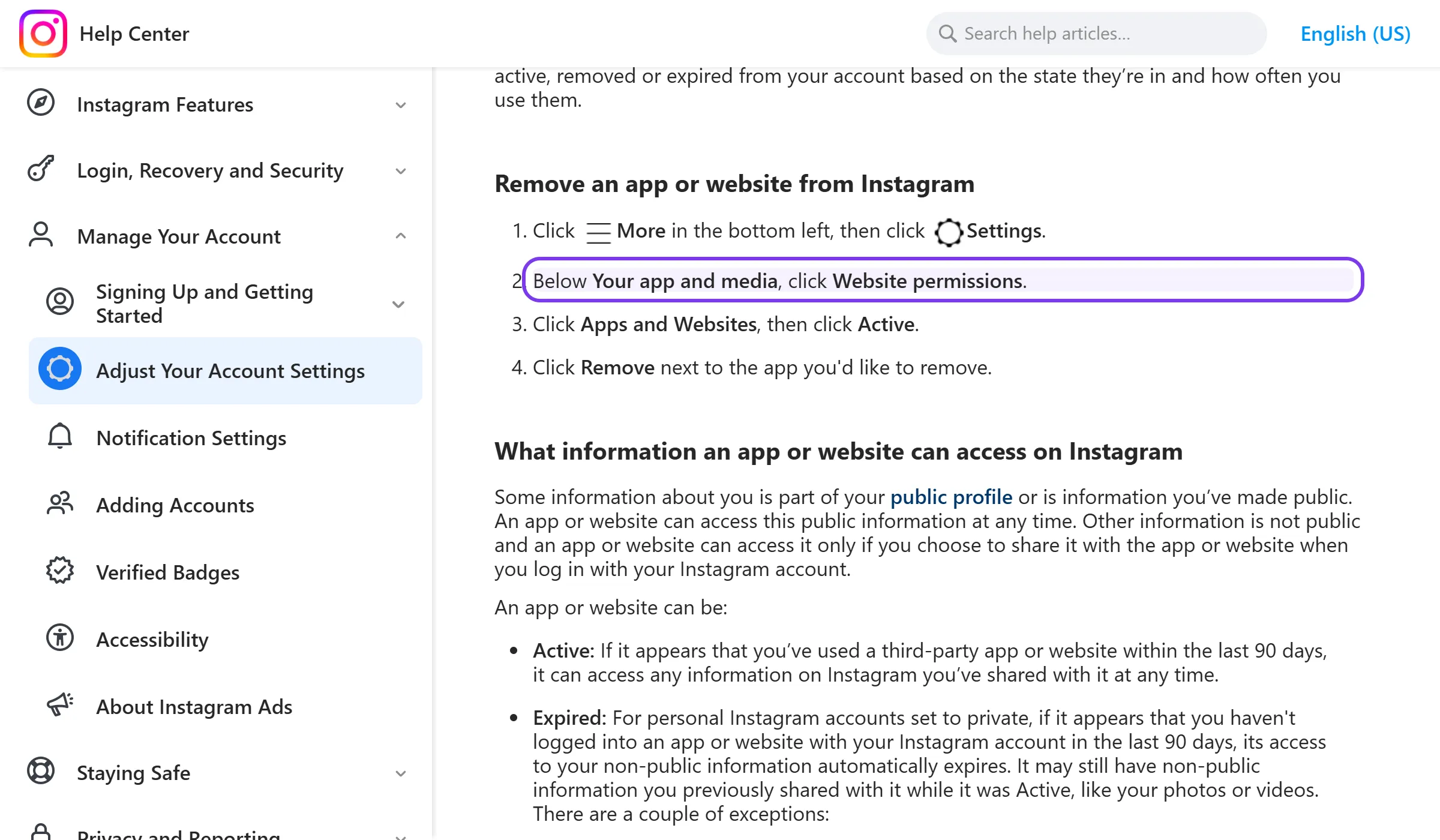
Instagram’s help article on connected apps explains the three states an app can be in, and what removing one does. The short version is that a removed app can no longer reach anything that is not public on your account, though it may keep what it already collected.
If you would rather see it done, this short walkthrough goes through the same screens on a phone:
 Play video: How to remove third-party apps and websites from Instagram, DiziSight
3. Check where you are logged in
Open Accounts Center → Password and security → Where you’re logged in. You will see every device and location with an active session. Log out of anything you do not recognise, and anything that belongs to a person or service that no longer needs access.
4. Change your password
If any service has ever had your password, change it now, even if you have cancelled the service. Cancelling stops the billing. It does not stop anyone using a password they already have. Pick one you have not used anywhere else.
5. Turn on two-factor authentication
Two-factor authentication asks for a code whenever someone logs in from a device Instagram does not recognise, which shuts out anyone holding an old copy of your password. You can use an authentication app, a text message or WhatsApp. Instagram turns it on by default for creator accounts, so if you run one, check that it is still on rather than assuming.
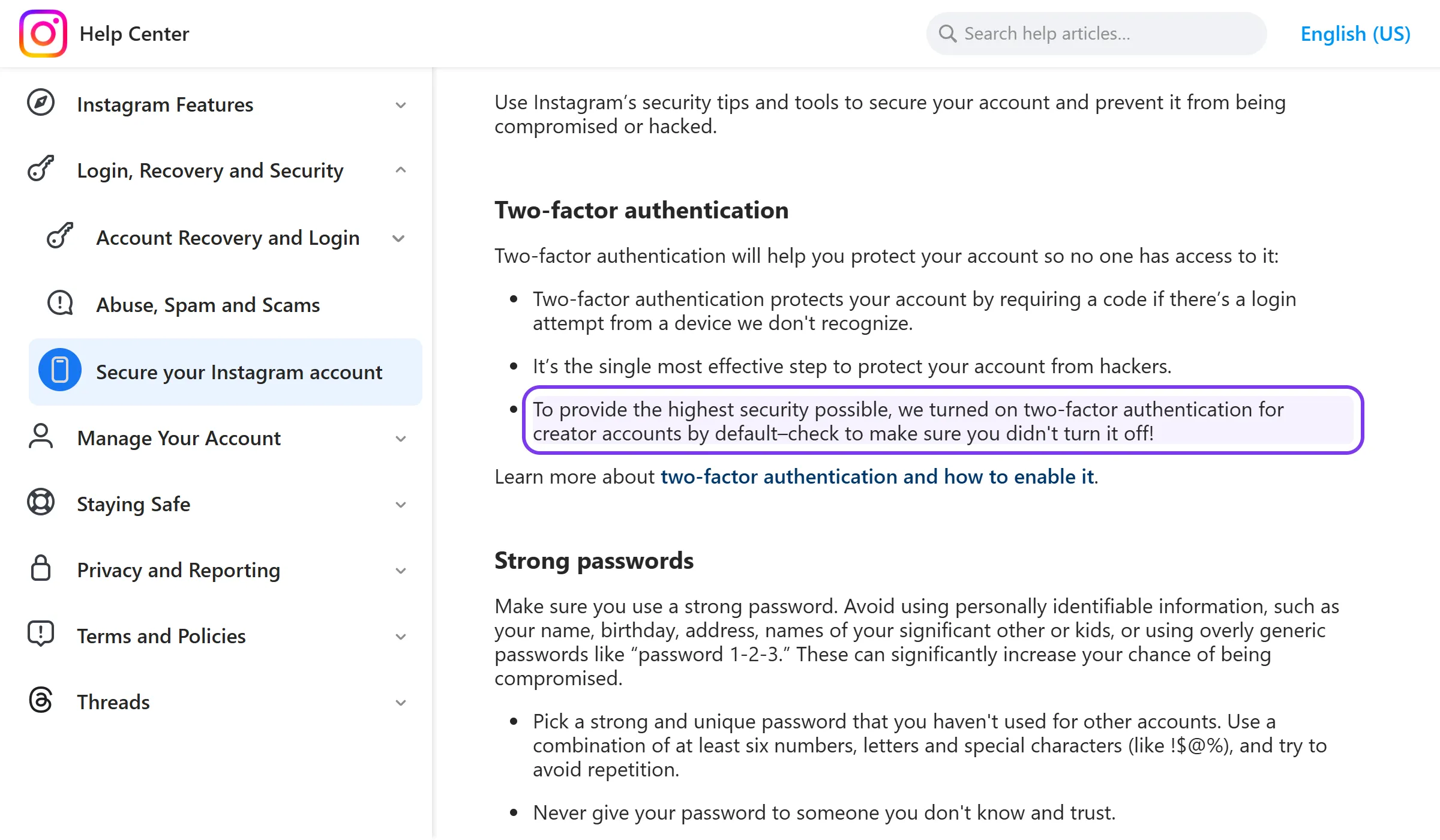
Instagram’s guide to securing your account covers the rest, and the two-factor setup page walks through each method.
6. Switch off the VPN and update the app
Log in from your normal connection for the next few days, and update Instagram to the current version. Neither is a fix on its own, but both remove noise that makes a clean account look suspicious.
7. Use the account normally for a few days
Use it the way you usually do. No bulk following, no pasting the same comment across posts, and no frantic catch-up on everything you could not do while limited. You are aiming for a few boring days, which is exactly what a person’s account looks like.
If you get locked out entirely, or think someone else has control of the account, go straight to instagram.com/hacked rather than any recovery service.
For a quick visual run-through of the in-app steps, this video covers the warning itself:
 Play video: How to fix “We suspect automated behavior on your account” in Instagram, Tech Solutions Guide
What not to do
Do not pay anyone to “remove the flag”. There is no back channel. Every service that promises one wants your login, and your login in someone else’s hands is the problem you are trying to fix.
Do not hand your password to anyone offering help, whether that is a stranger in your DMs or an account calling itself Meta support. Instagram support does not ask for it.
Do not open a second account to carry on. The cause is still sitting on the first one, and a fresh account running the same pattern has even less room than the old one.
And do not keep checking whether the limit has lifted. Hammering the follow button every hour to find out is more of the behaviour that got you flagged.
Does DM automation cause this warning?
It depends entirely on how the tool connects, and there are two very different kinds sold under the same name.
Password-based tools log in as you and drive your account in a browser or on a server. They are exactly what this warning exists to catch, and no amount of “human-like delays” changes what they are. If a DM tool asks for your Instagram password, it is in this group.
API-based tools connect through Meta’s official Instagram Messaging API. You sign in on Instagram’s own screen, approve permissions, and the tool never sees your password. Meta’s messaging documentation sets the rules: conversations only begin when an Instagram user sends a message to your account, and the business then has 24 hours to respond.
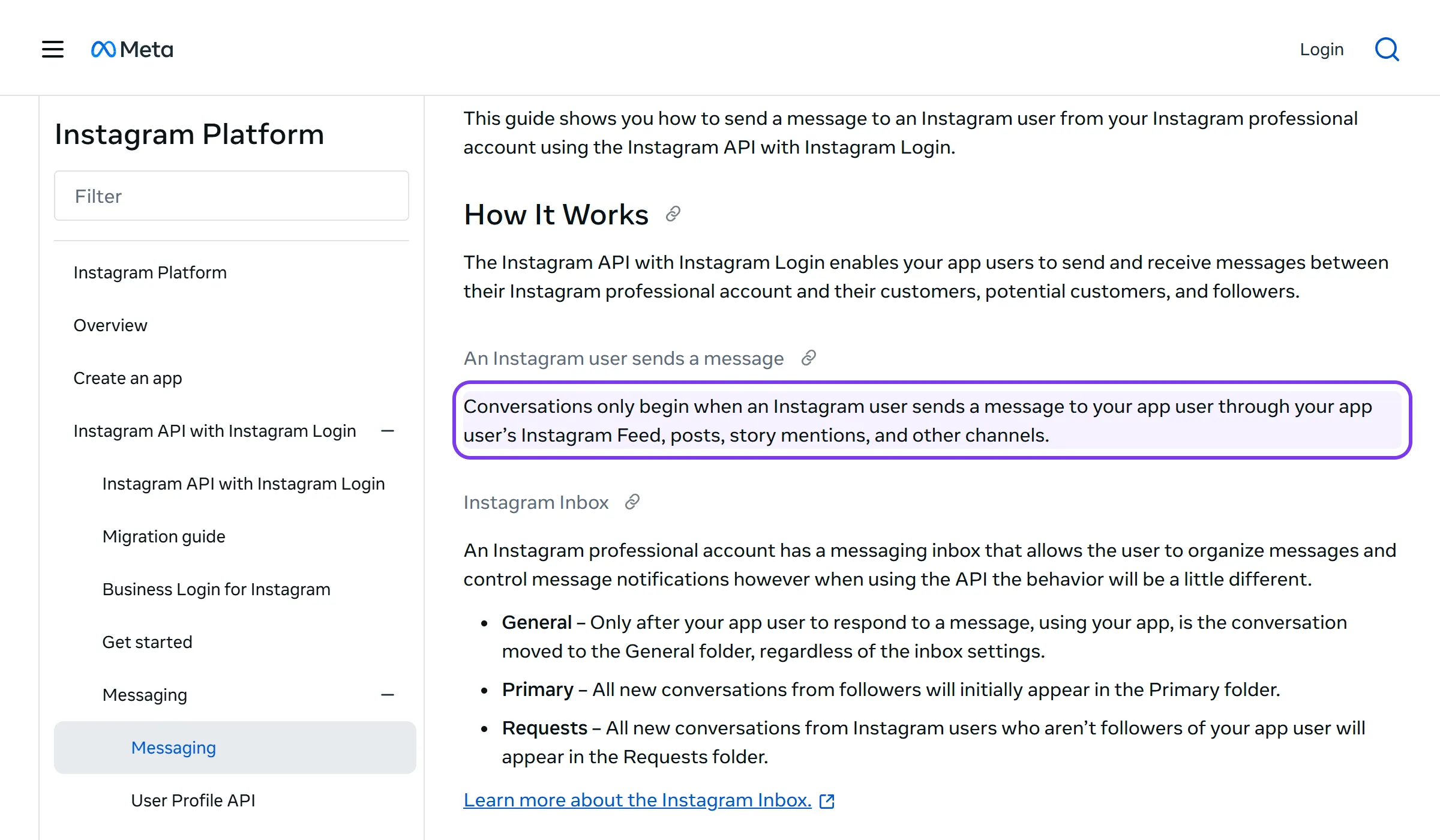
That rule is the whole difference. An API-based tool never logs in as you and cannot message someone cold. It answers people who commented, replied to a story or sent a DM, through a channel Meta built for exactly that purpose and polices directly. That is the “express permission” the Terms of Use are talking about. We go through how to tell the two kinds apart in our guide to whether DM automation is safe.
API-based automation is also a better tool for the job people were trying to do with the password-based kind. Instead of spraying DMs at strangers and hoping, you reply instantly to the people who already put their hand up. A comment-to-DM automation on a Reel does in minutes what a mass-DM bot pretends to do, and does it inside the rules.
Setting it up without risk
Both DM Automation and InstantDM run on the official API and cover comment-to-DM, story replies, keyword triggers and welcome messages on their free plans. Neither asks for your password.
In InstantDM, the quick version takes a couple of minutes in the mobile app: choose the post, set the keyword, write the DM, publish. When one message is not enough, the flow editor lets you build a follow-up sequence or branch on what the person replies, without moving to another product. InstantDM’s own write-up on API rate limits is a useful read on how that pacing works.
DM Automation takes the guided route: connect through Instagram’s login screen, pick a trigger, write the message, and it is live in about five minutes, with reporting on every automation from the free plan up. If you are weighing the two, the comparison page sets them side by side. For how the whole channel fits together, start with the complete guide to Instagram DM automation.
How to avoid it from now on
The list is short, because the rules are simple once you know what is being watched:
- Never give your Instagram password to anyone else. Anything legitimate connects through Instagram’s own login screen.
- Check your connected apps every few months. On a professional account, old connections do not expire on their own.
- Keep two-factor authentication on. It is the one step that makes a leaked password useless.
- Give each job to one person or one tool. Three people and two tools logging in from different countries look like a takeover, because that is what a takeover looks like.
- Automate replies, not outreach. Answering people who contacted you is what the API is for. Messaging people who did not is what the warning is for.
- Grow a new account slowly. A week-old account following hundreds of people a day will get flagged whatever tool it uses.
Frequently asked questions
How long does the automated behavior restriction last?
Instagram does not say. Reports range from a few hours to a few days for a first warning. It lasts longer if whatever caused it keeps running, so the fastest way to shorten it is to find and remove the cause.
Will Instagram ban my account for automated behavior?
Not for a single warning you deal with. The warning is the early stage. Accounts get disabled when the cause carries on after repeated warnings, which is why cutting off the app or service matters more than anything else on this list.
Why did I get the warning when I don’t use any bots?
Look at the causes above that do not feel like bots: an app you connected years ago, a VPN, a browser extension, a manager logging in from abroad, or simply a burst of liking and following in one sitting. Checking Where you’re logged in and Apps and websites finds the cause in most cases.
Is it safe to use DM automation after getting this warning?
Yes, if the tool runs on Meta’s official API and never asked for your password. Wait until the warning has cleared and the account is behaving normally, then connect through Instagram’s own login screen. If the warning was caused by a password-based DM tool, remove it first and change your password before connecting anything new.
Does a VPN cause the automated behavior warning?
On its own, rarely. Combined with other signals, such as a new device, a burst of activity, or logins from several countries, it adds to the pattern. Turning it off while the warning clears removes one variable.
I can’t log in at all. What now?
Go to instagram.com/hacked and follow the recovery steps there. It is Instagram’s own recovery flow and works from a phone or a desktop browser. Ignore anyone in your DMs or comments offering to recover the account for you.
The short version: find whatever is acting as you, cut it off, lock the account down, and give it a few quiet days. When you are ready to automate again, do it through a tool that connects the official way. Start with DM Automation free and your first comment-to-DM can be live in about five minutes, without your password leaving Instagram.